



The system is based on the use of a map database and a global satellite navigation system (GPS), which allows the location of the vehicle to be determined using a satellite system.
The on-board navigation system consists of the following elements:
- remote control;
- display;
- computer;
- buttons to recall the last voice message;
- compact disc;
- multifunctional antenna.
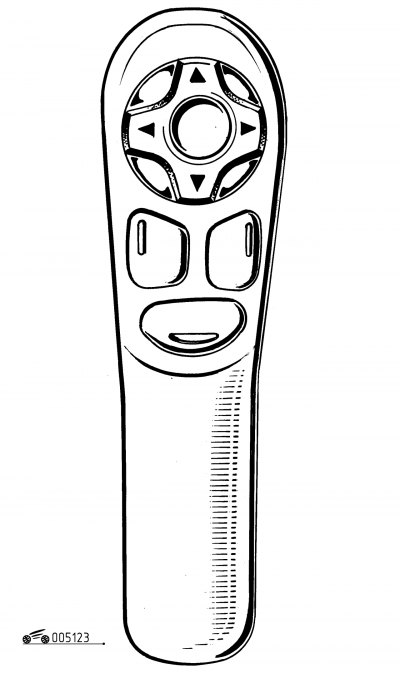
Figure 1.23. Remote control
Remote control (figure 1.23) when directed at the display screen, allows you to select information contained on it in various menus.
The pushbutton switch arrows allow you to move around the screen and select the desired function.
When the screen is in receiving mode, the up and down arrows allow you to adjust the brightness of the screen. The left and right arrows in the pointing mode allow you to display the full street name if it does not fit on the screen.
Button menu allows you to access the main menu. It can be used at any time.
Button esc when pressed briefly, it allows you to exit the current function and return to the previous screen. When pressed for a long time (more than 2 seconds), it returns to the receiving mode screen.
Button mod allows you to switch modes. When you press it briefly, you switch between the date input, navigation and radio signal reception modes.
Button val confirms the selected function.
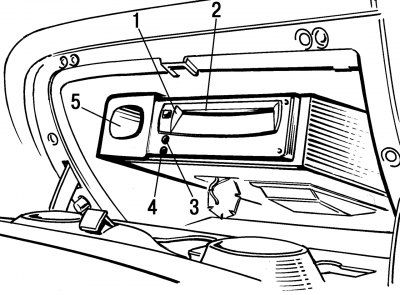
Figure 1.26. Computer: 1 - CD eject button; 2 - CD insertion slot; 3 — indicator "ON" ("Enabled"); 4 — "CD" indicator (compact disc); 5 - niche for storing the remote control
The remote control is powered by two elements (1.5 V) of the LR03 type. The remote control is stored in a niche of the glove compartment (see figure 1.26).
The CD contains map data and is inserted into the computer with the label facing up.
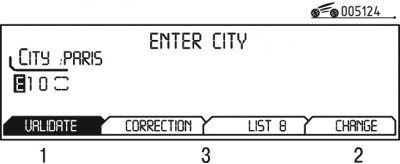
Figure 1.24. Selecting a function on the display
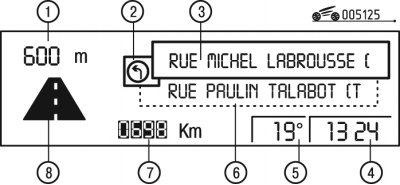
Figure 1.25. Searching for a route on the display: 1 - distance to the nearest maneuver; 2 - the next maneuver that needs to be performed; 3 - name of the street of movement after the maneuver; 4 - current time; 5 - outside air temperature; 6 - name of the street of the current movement process; 7 - distance to destination; 8 - maneuver to be performed
The display picture of the navigation system is shown in Figures 1.24 and 1.25.
When working with the various menus, the functions that appear at the bottom of the screen (figure 1.24), can have different meanings:
- 1 - selected function;
- 2 - a function that is not available in this situation;
- 3 - functions that are available.
Option List ("List") allows you to remember up to 80 addresses.
Display 10 (see figure 1.11) the on-board computer is displayed on the dashboard of the passenger compartment. The computer itself is located in the glove compartment (figure 1.26).
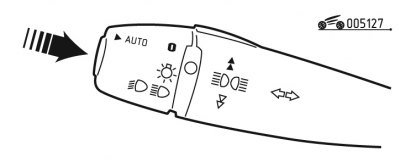
Figure 1.27. Recalling the last audio message
The computer works only when the ignition is on. When the ignition is on (the ignition key is in position "A") and the button is pressed (arrow, figure 1.27) the last voice message is replayed.
Main menu. To access the main menu, turn on the ignition (position "A") and press the Menu button.
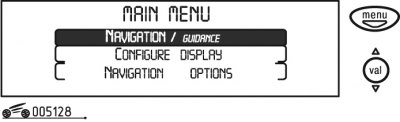
Figure 1.28. Selecting the Navigator/Guidance function
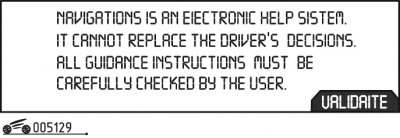
Figure 1.29. Navigator mode
Select the desired function (Navigator / Guidance) using the search direction arrows on the remote control, and then confirm the correct selection by pressing the val button (figure 1.28).
After selecting the Navigator/Guidance menu, the display switches to navigation mode (figure 1.29).
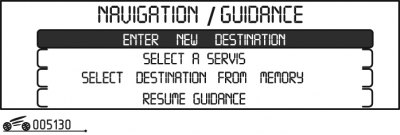
Figure 1.30. Navigator/Guidance menu
To move to the next screen, press the Val button - the Navigator/Guidance menu will open (figure 1.30), which offers various features to enable hovering:
- enter the address of the new destination (Enter new destination);
- select the location of service provision in this city (train station, hotel, airport, etc.) — Select a service;
- select an address stored in memory (Select destination from memory);
- resume route search (Resume guidance), if it was interrupted;
- abort route search (Stop guidance).
Note: Radio operation will be temporarily disabled when the system is in pointing mode.
Entering a new destination. Enter a new destination in the following order:
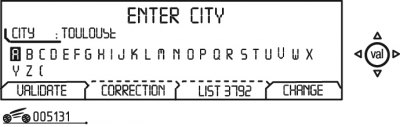
Figure 1.31. Established destination
1) select the Enter new destination mode - the last entered city name is displayed on the screen (figure 1.31);
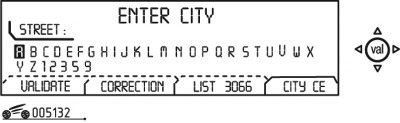
Figure 1.32. Entering a destination
2) To enter the name of a new city, write its name, selecting letters from the alphabet using the search direction arrows and confirming each selected letter by pressing the Val button. In case of an error, use the Correсt function ("Correct") to erase the last letter entered (figure 1.32);
3) The List function will show the number of cities whose names begin with the letters you entered as you enter them. When the list is reduced to five names, these cities will be automatically displayed on the screen. Select the desired city and confirm by pressing the Val button;
4) the function Change ("Change") allows you to completely erase the typed name of the city;
5) After the full city name is displayed on the screen, select the Validate function and press the Val button;
Note: When typing a city name, after each correctly typed letter, only those letters that are in the name of existing cities will appear.
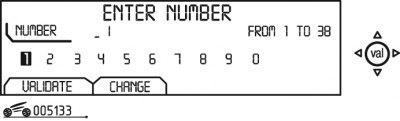
Figure 1.33. Entering the route number
6) Enter the highway number by selecting the Validate function and pressing the Val button (figure 1.33);
Note. You can search for a route automatically - after entering the city, press the Town center function.
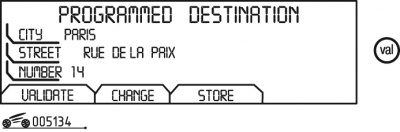
Figure 1.34. Destination address
7) the full destination address appears on the display screen (figure 1.34);
8) Select the Validate function and press the Val button. The name of the entered destination is displayed on the screen;
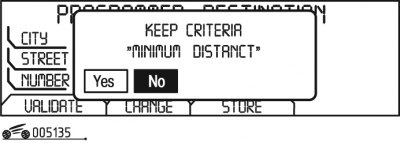
Figure 1.35. Entering a route search instruction into the system
9) The route search process starts automatically if the No button is not pressed within 5 seconds (figure 1.35). To cancel the route search command, select the Yes function and press the Val button;
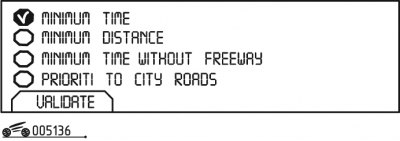
Figure 1.36. List of criteria
10) while entering the destination, a list of criteria appears on the display screen (figure 1.36);
11) select one of the criteria listed in the list by checking the box and clicking Val. After the "check mark" appears, select the Validate function ("Confirm") and click the Val button;
12) The system completes entering the new destination according to the specified parameters.
Search for locations where various services are provided. Conduct your search in the following order:
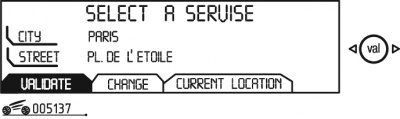
Figure 1.37. Selecting a location for providing services
1) select the Select a service mode - the last entered city name will be displayed on the screen (figure 1.37);
2) indicate the name of the place where you need to receive the service; there are three options for this:
- select the last entered address using the Validate function;
- type the name of a new city (settlement) destination, then the street name or select the Town center function, for which you need to select the Change function;
- use the location where the car is currently located by selecting the Current location function ("Location");
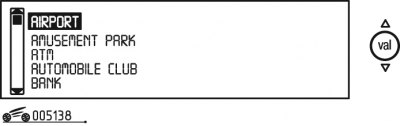
Figure 1.38. Services provided
3) after confirming the correctness of the address, select the location of the service using the search direction arrows on the remote control (figure 1.38) and confirm by pressing the Val button. The cursor on the left side of the screen will indicate where you are in the list;
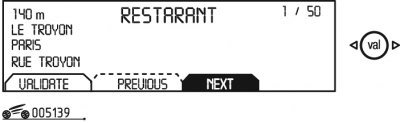
Figure 1.39. Service delivery point
4) the address of the place where the service will be received will appear on the display screen. If there are several places (no more than 50) receiving this service within a radius of approximately 50 km, this is confirmed by the number in the upper right part of the screen (figure 1.39);
5) using the Next or Previous function, you can view the proposed list;
6) after the screen displays the address that suits you, select the Validate function ("Confirm") and click the Val button;
7) the on-board navigation system starts working, following the entered instructions.
Adding a new address to the list. Enter a new address into the list in the following order:
1) select the Select destination from memory mode on the display screen in the main menu (see figure 1.30) the last entered city name is displayed (see figure 1.31);
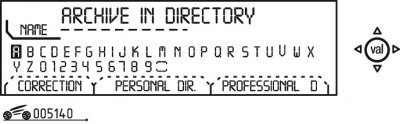
Figure 1.40. Entering a new address
2) enter the name of the new destination (figure 1.40) and select the Store function ("Save to memory") (see figure 1.33);
3) select a header for the address entry. If the header for the address entry already exists with some other address, you can replace the old address with a new one;
4) Select Personal dir. ("Personal list") or Professional dir. ("Professional list"), and then click the Val button;
5) after this the address will be entered into the memory in the selected list (up to 100 addresses).
Selecting an address from the list. Search for the address in the following order:
1) select the Select destination from memory mode on the display screen in the main menu (see figure 1.30) personal dir. ("Personal list") or Professional dir. ("Professional list") is displayed;
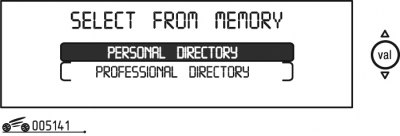
Figure 1.41. Address list
2) select the required list (figure 1.41) and press the Val button;
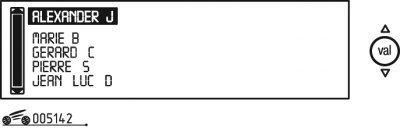
Figure 1.42. Subscriber addresses
3) a specific list of subscribers' addresses will be displayed on the screen (figure 1.42), entered into memory. The cursor on the left side of the screen will tell you which part of the list you are in;
4) select the recipient and press the Val button, the full address will be displayed on the screen;
5) select the Validate function and press the Val button;
6) the on-board navigation system begins to work on plotting the route according to the received data.
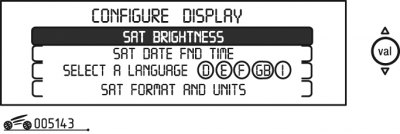
Figure 1.43. "Configure display" menu
Display configuration. In addition to the main menu, there is also a Configure display menu (figure 1.43), which allows you to perform the following actions:
- adjust screen brightness;
- set date and time;
- select the language for displaying messages on the screen and for audio messages;
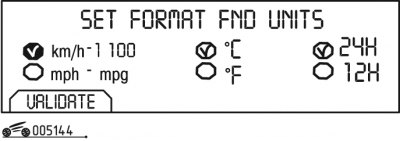
Figure 1.44. Formats and units of measurement
- - set formats and units of measurement (figure 1.44).
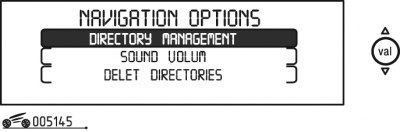
Figure 1.45. Navigator options menu ("Additional navigation options")
Additional navigation options. When you go from the main menu to the Navigator options menu ("Additional navigation options") (figure 1.45) you can do the following:
- enter new data into both lists;
- adjust the volume level of the speech synthesizer;
- clear data from both lists.
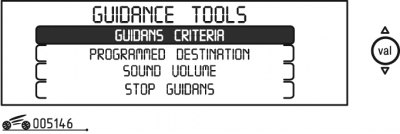
Figure 1.46. "Guidance tools" menu
Route search tools. To get access to the Guidance tools menu ("Route Search tools") (figure 1.46) press the Val button during the aiming process.
Entering the Guidance tools menu allows you to:
- 1) change the current route search criteria - Guidance criteria;
- 2) display or change the specified destination - Programmed destination;
- 3) adjust the volume level of the speech synthesizer - Sound volume;
- 4) stop the current guidance process - Stop guidance.